
Tivimate is one of the most advanced, easy to use, smooth, and modern graphic interface IPTV player for big-screen Android devices (TV/Boxes).
There is both a premium version and a free version of the application available for use. However, we suggest purchasing a paid version for a much more enjoyable experience.
The premium option includes the following features not available with the free version:
- Scheduled recordings
- Support for multiple playlists
- Favorites management
- Catch-up
- Customizable EPG TV Guide update intervals
- Customizable Panels transparency and timeout
- Customize groups and channels
- Manual Channels sorting
- Turning on the last channel on the app start
- Reminder to automatically play channel
- Many More
Install TiviMate on Android Device
If you’re running an Android TV, Box, phone, or tablet, more than likely this app is available in the Google Play Store. Just search for “TiviMate IPTV Player” and install it.
You may also see TiviMate Companion when performing this search. That app is only used to register for the premium service.
Once you subscribe to our IPTV service we will provide you with an m3u playlist URL needed to enjoy watching your favorites TV channels, movies, and series via tivimate player.
how to install Tivimate IPTV player on Firestick/Fire TV
Follow this step by step guide:
- From the Main Menu scroll to hover over Settings.
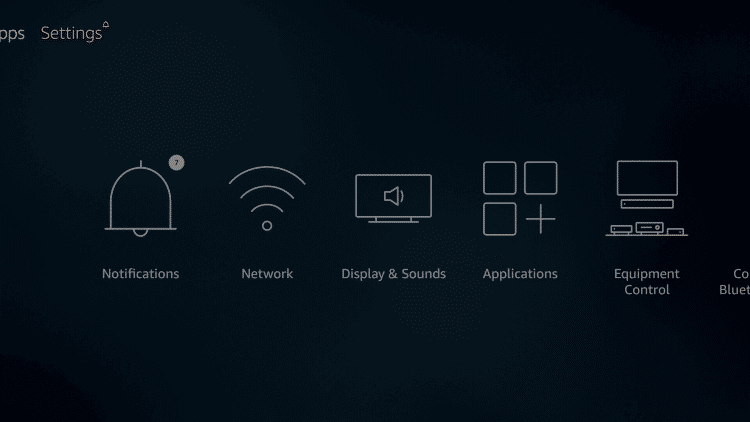
- Click on My Fire TV.
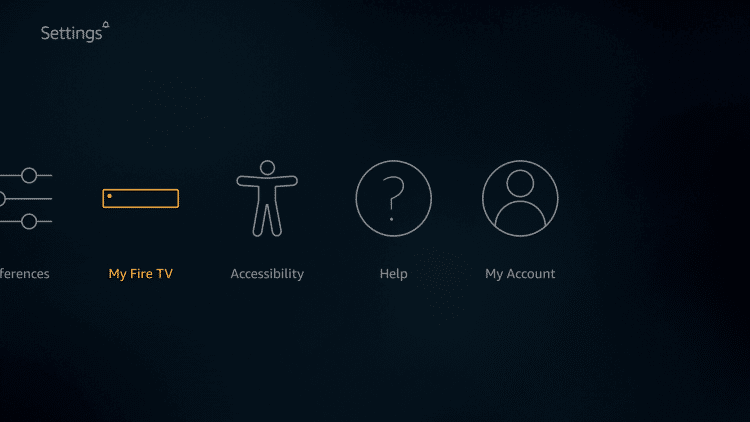
- Choose Developer Options.

- Click Apps from Unknown Sources.
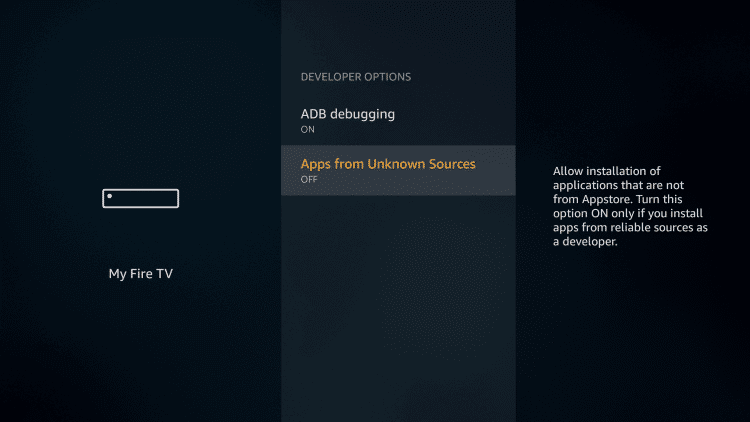
- Choose Turn On.
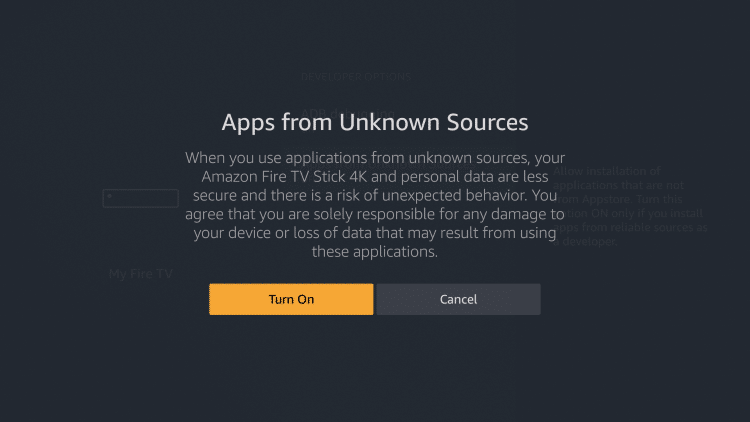
- Return to the Home Screen and click on the search icon and then type “Downloader” in the search box.
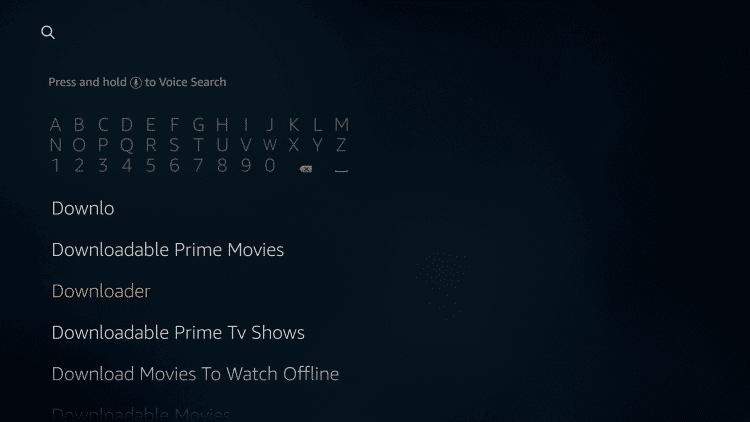
- Select the Downloader app and install it.
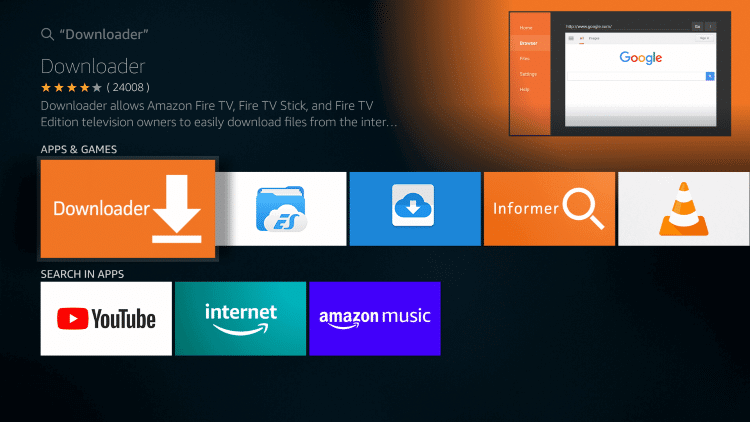
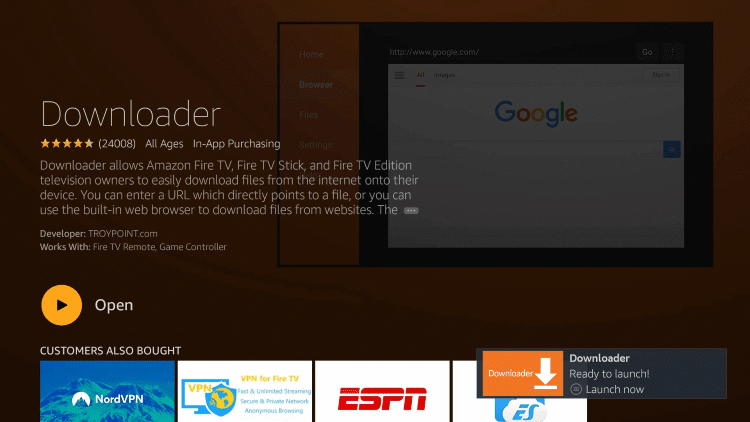
- Click Open.
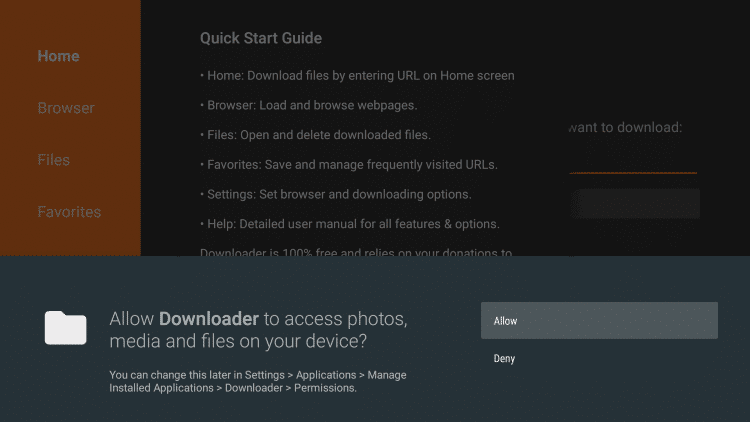
- Select Allow if presented with this prompt.
- Click OK.
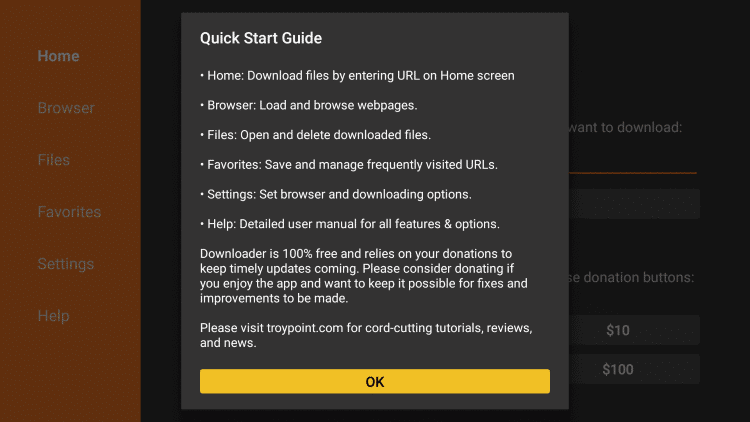
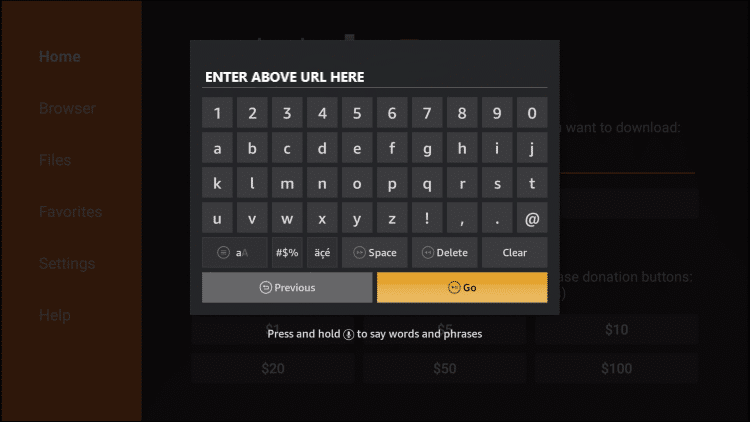
- Type the following URL exactly as shown here: https://rvtelly.com/apps/tivi.apk and click Go.
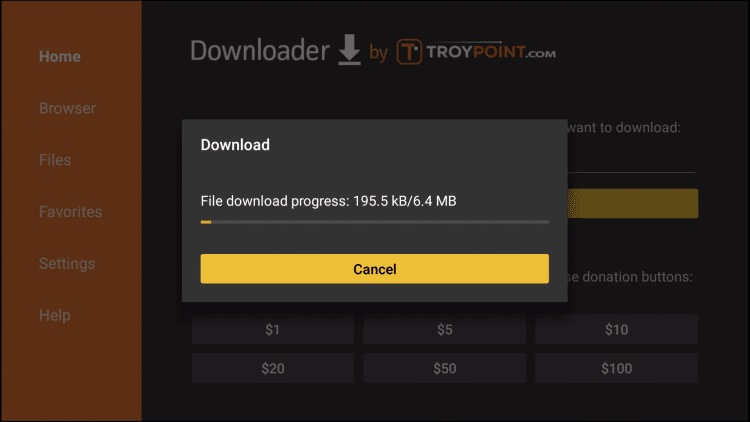
- Wait for file to download.
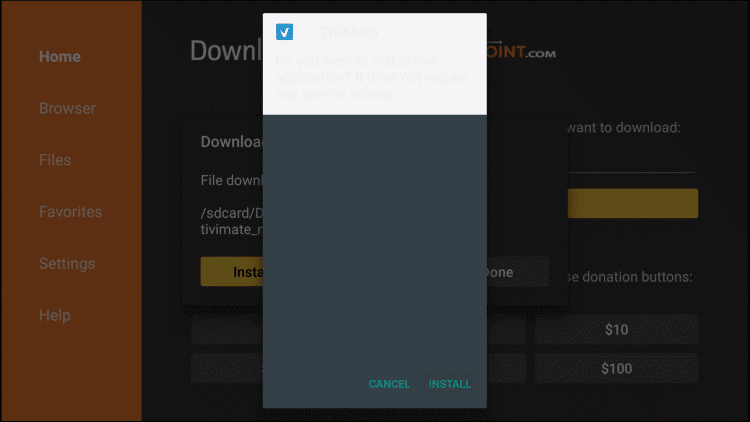
- Click Install.
- Click Done.
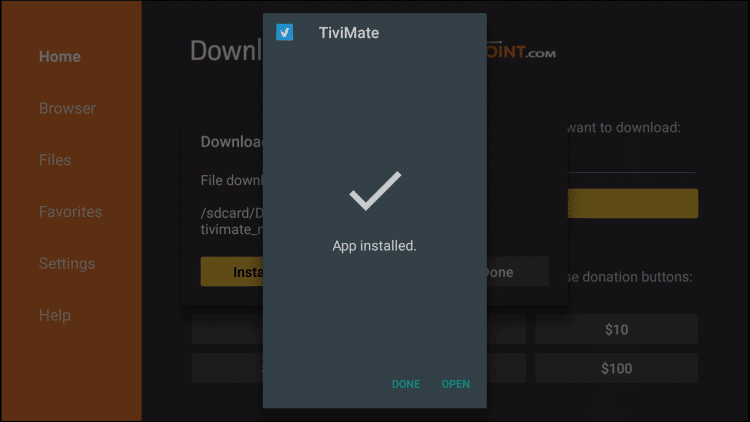
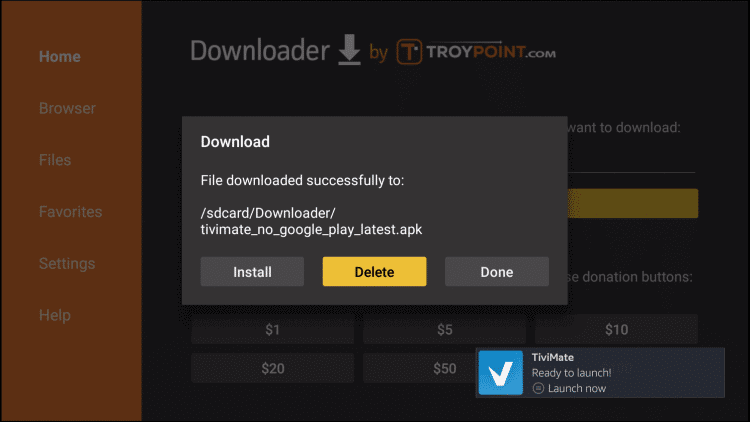
- This will take you back to Downloader. Click Delete.
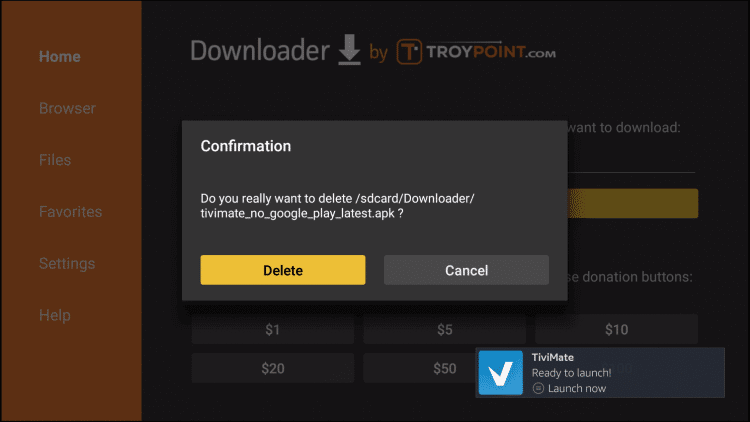
- Click Delete again.
- Return to device home-screen and under “Your Apps & Channels” click See All.
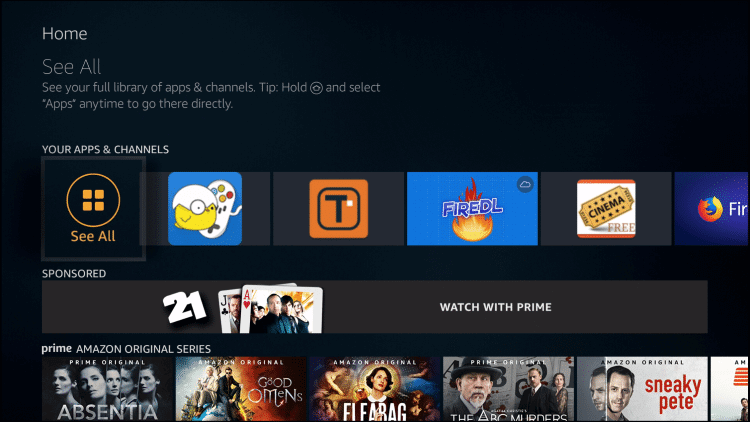
- Scroll down to hover over TiviMate.
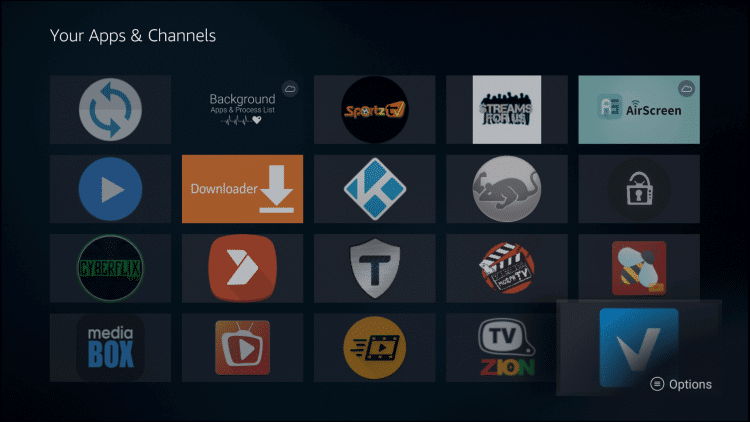
- Click Menu button on remote (3 horizontal lines), then click Move to Front.
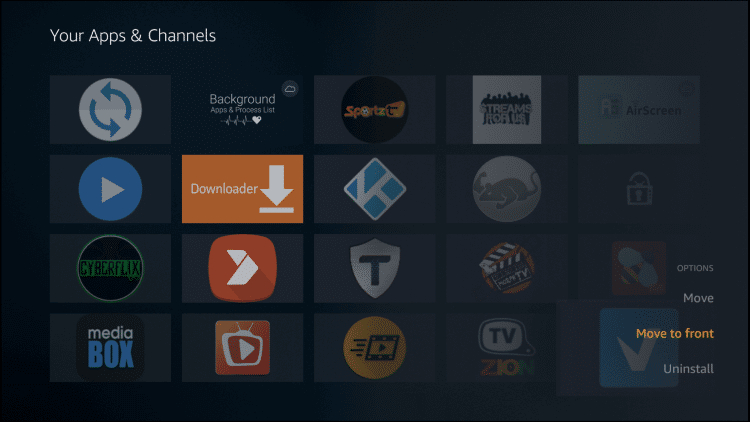
Tivimate IPTV playler app installation is now complete!
How To Setup RVTELLY within TiviMate
Follow the steps below to integrate your IPTV subscription in TiviMate:
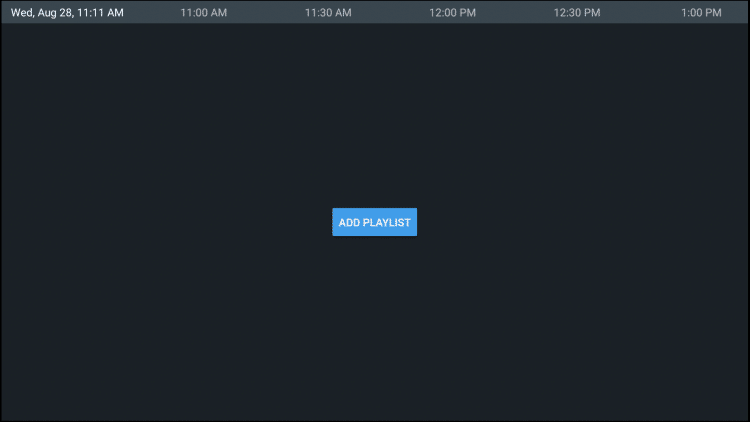
- Open TiviMate App and click Add Playlist
- Click Enter Xtream Code Login
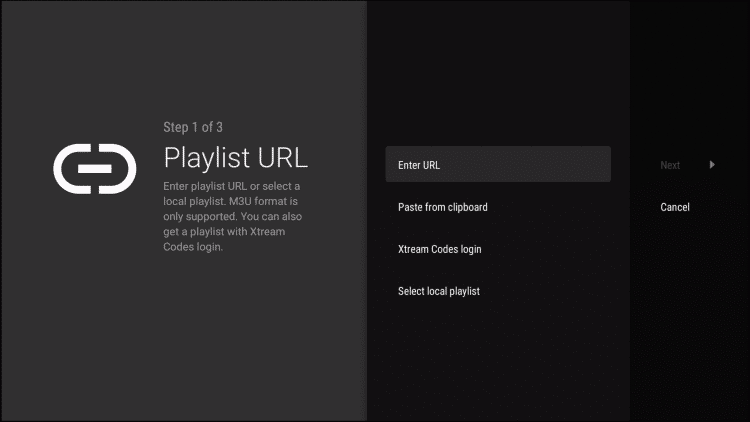
- Enter your user name and password and in the 3rd box enter (http://try.yourbillingpanel.com:8080)
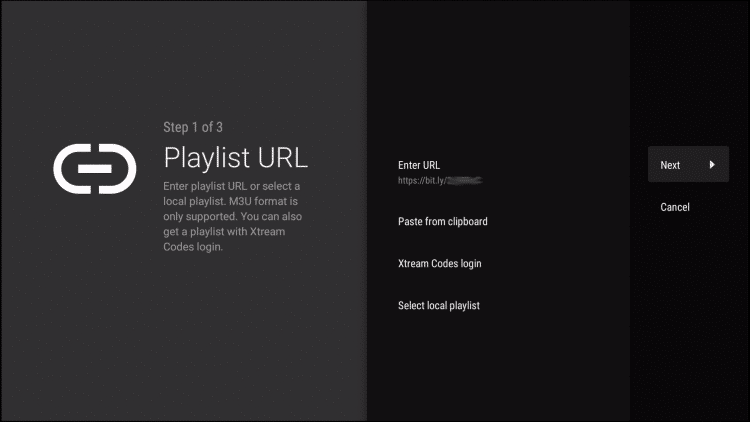
- Click Nex and wait for playlist to download.
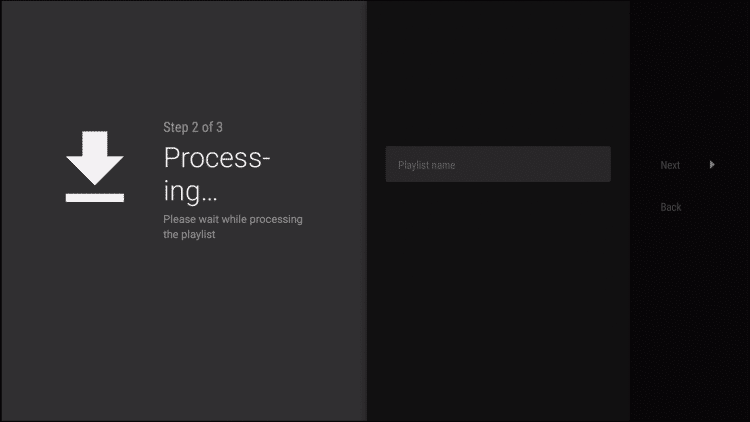
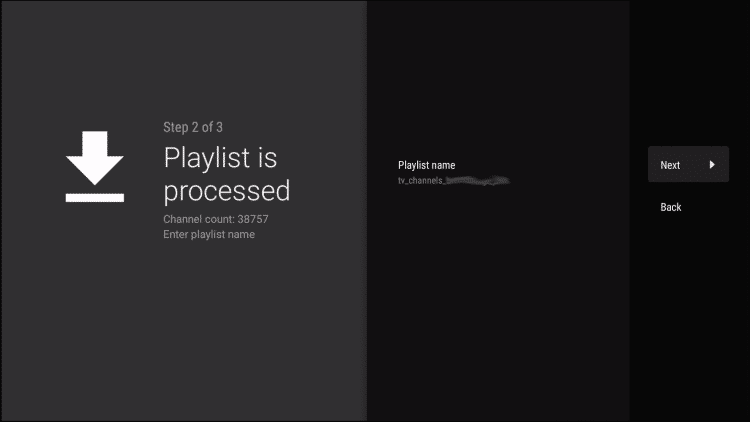
- You will then see Playlist is processed message with Channel count and your Playlist name. Click Next.
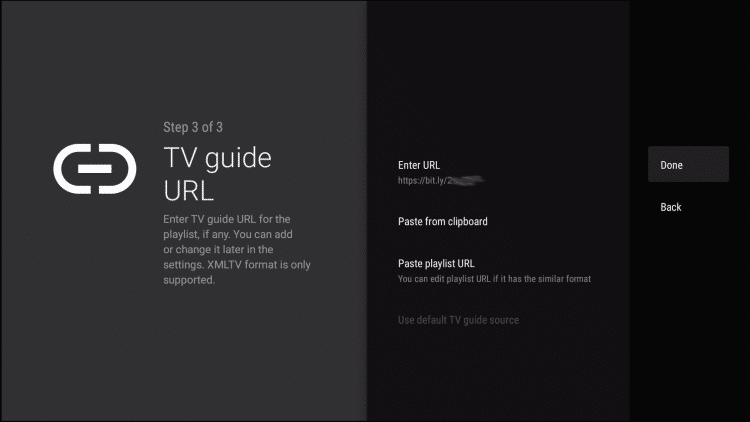
- We will now insert EPG TV Guide. Choose Enter URL.
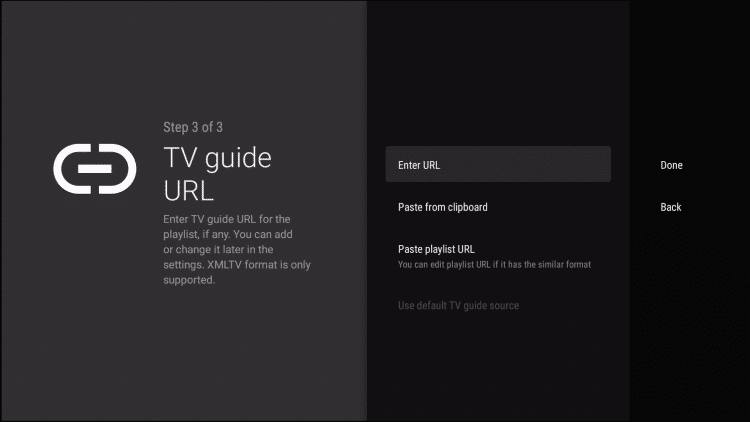
- Type the EPG URL we sent you in the email.
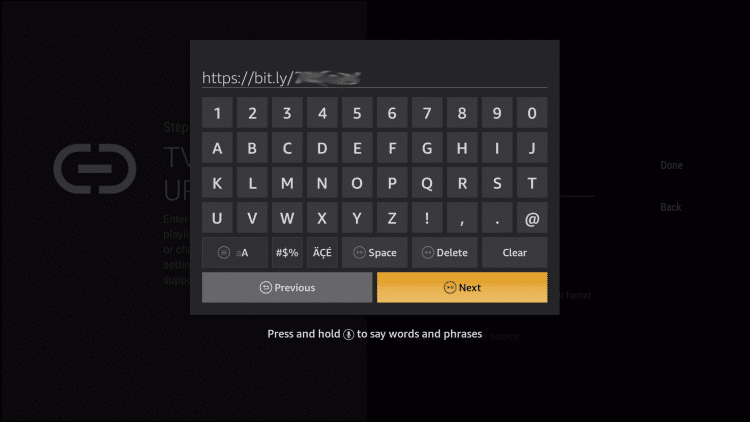
- Click Done.
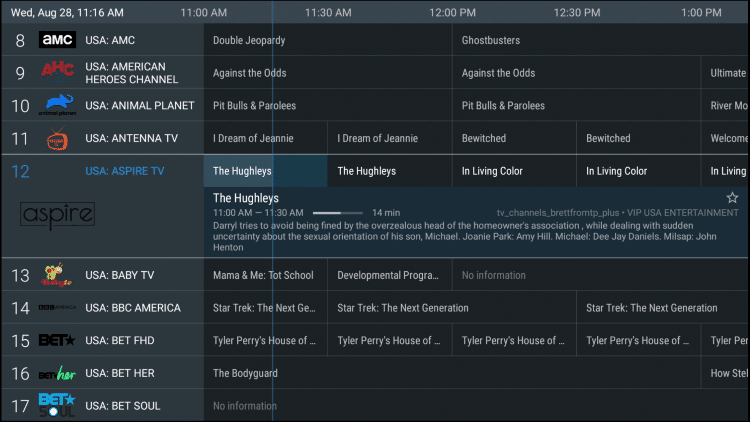
- TV Guide will import and you are able to start viewing!
It is important to note that many of the features within TiviMate are not available for those who choose to use the free service.
For example, if you try adding a channel or channels to favorites you will be prompted with the following message:
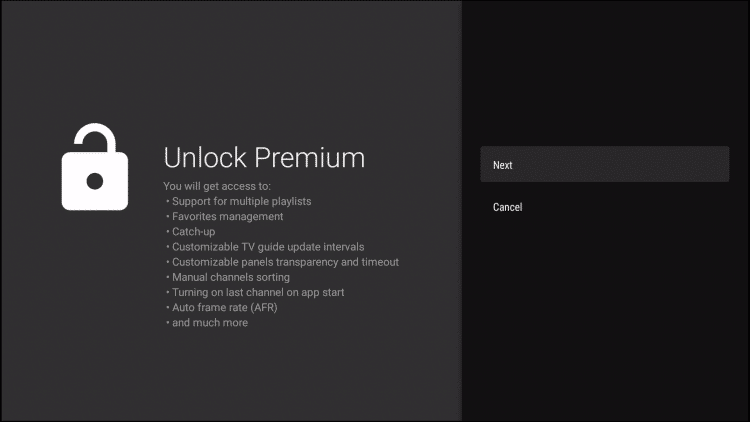
For those who wish to use the free version, simply click Cancel and continue with the TiviMate App.